Help Center
Guide for Beginners
Functional Guidelines

How to Customize the Navigation Bar (App)

2026-01-09 UTC
150.864 Read
25

In the Gate mobile app, you can customize your navigation bar based on your habits and preferences. Here's how to do it:

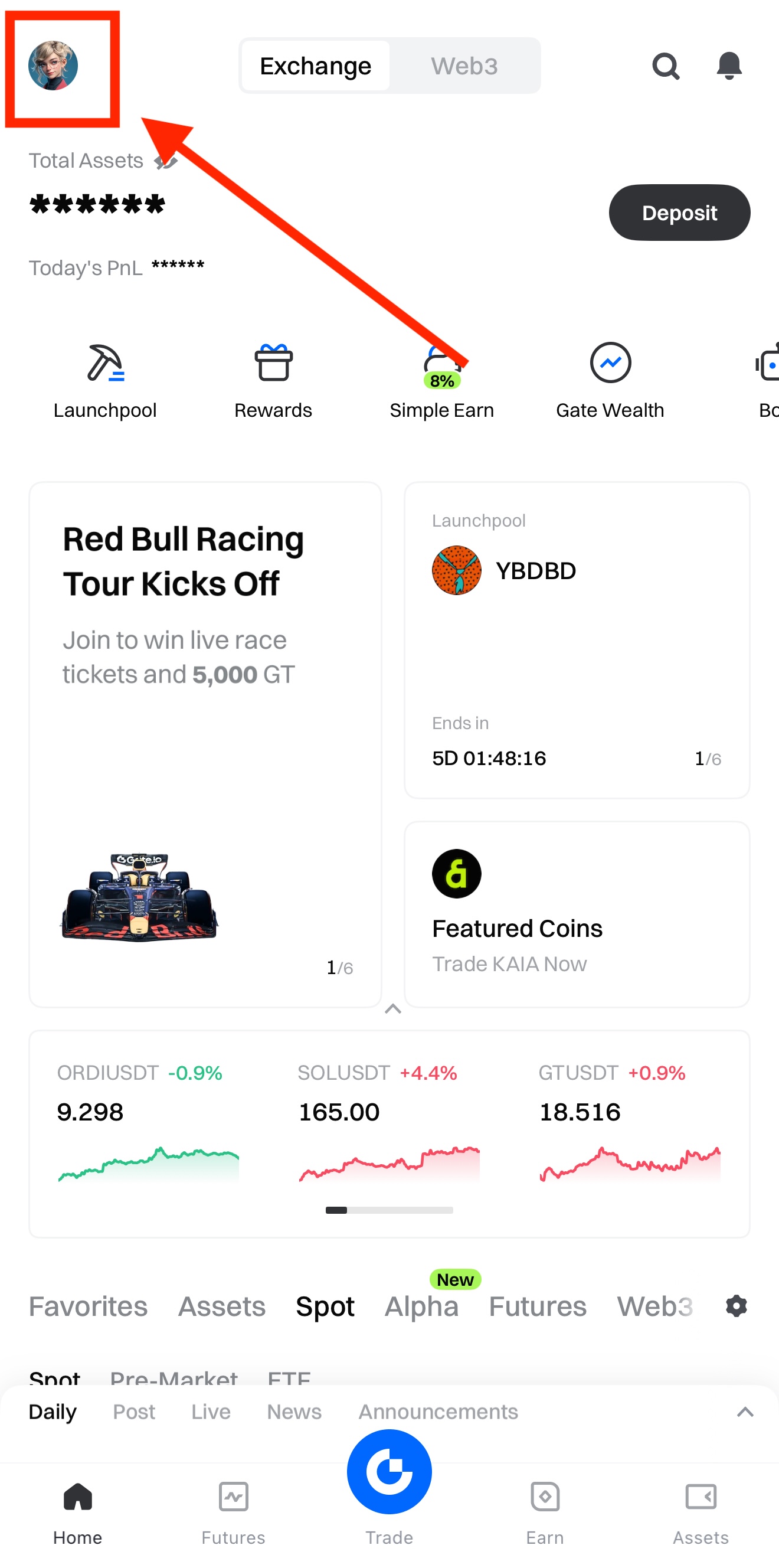
First, open the Gate app and click on your profile.

1

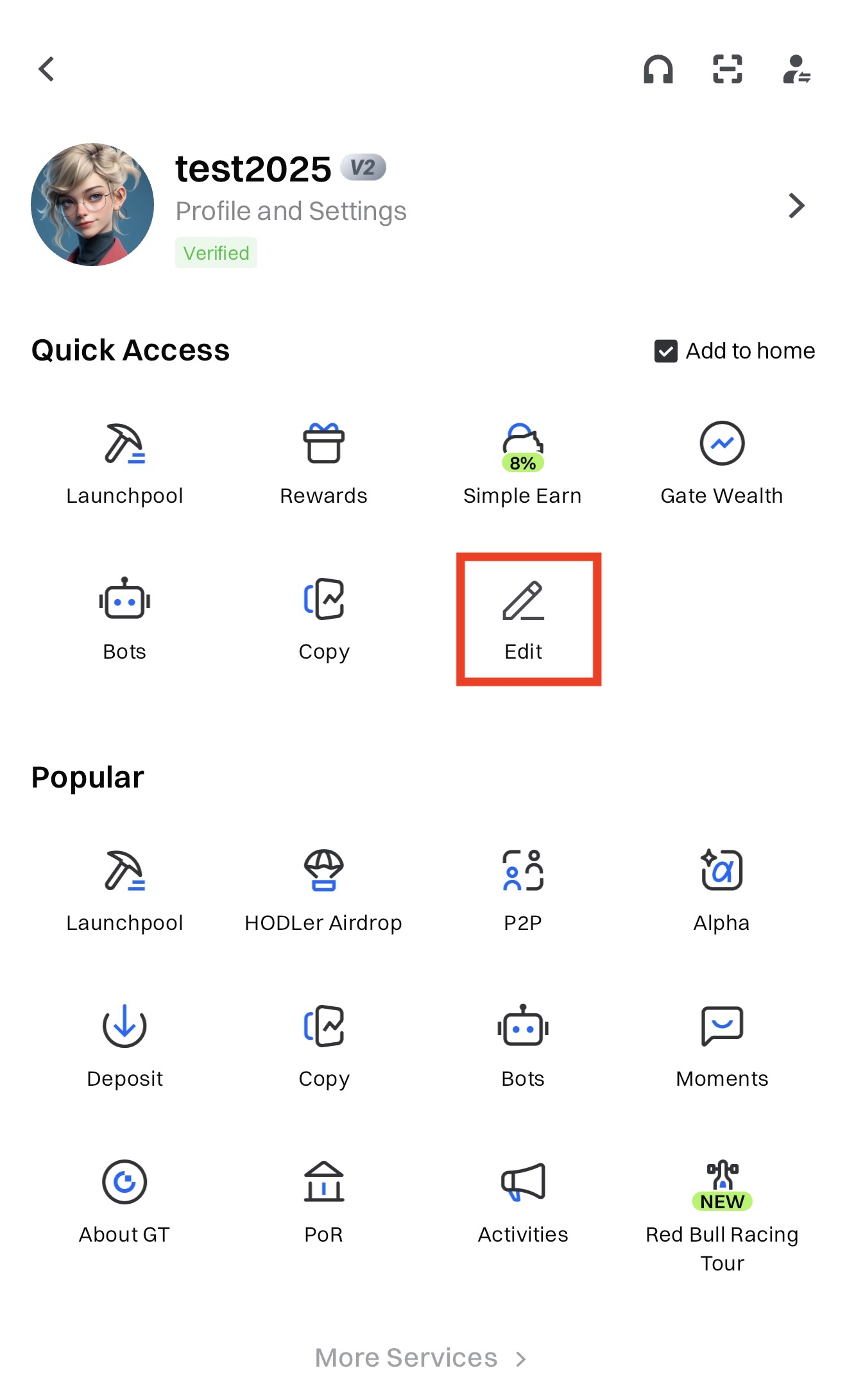
Here you can see icons of all features and services. Click the edit icon on the top right to edit the Navigator.

1

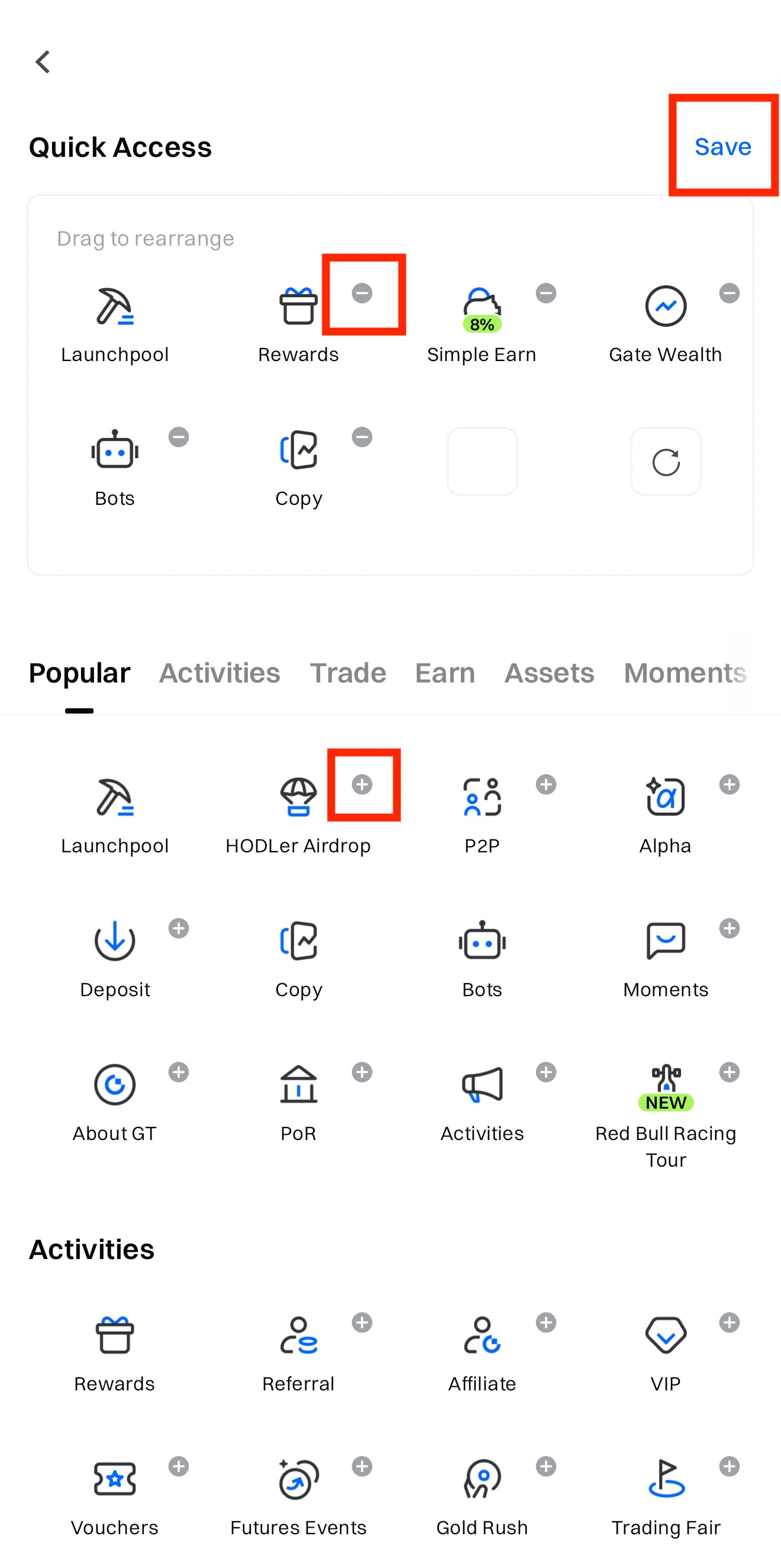
Click on the "-" symbol on the icon in "Quick Access" to remove the item. Click on "+" symbols to add items to "Quick Access".

1

The content provided herein is for reference and educational purposes only and does not constitute any financial, investment, trading, or legal advice, nor does it constitute an offer or solicitation to buy or sell any digital assets. Gate makes no express or implied representations or warranties regarding the accuracy, completeness, or timeliness of the information contained herein. Product features, interfaces, rules, and fee structures may be updated or adjusted at any time. Please refer to the latest announcements and the actual information displayed on the Gate platform for the most accurate details.
Digital asset investments involve significant risk, and prices may fluctuate substantially. You may lose the entire amount of your investment. Please make decisions cautiously based on your own financial situation and risk tolerance after fully understanding the associated risks. If necessary, you are advised to consult an independent professional financial or legal advisor.
For more information about potential risks, please refer to Gate's Risk Disclosure and User Agreement.
Sign up now for your chance to win up to $10,000!
signup-tips